How do I split a PDF by bookmarks in PDFsam Basic?
Cut a PDF at the bookmarks of a chosen level, one output file per bookmark. It takes five steps: open Split by bookmarks, add the PDF, choose the level, filter if needed and name and run.
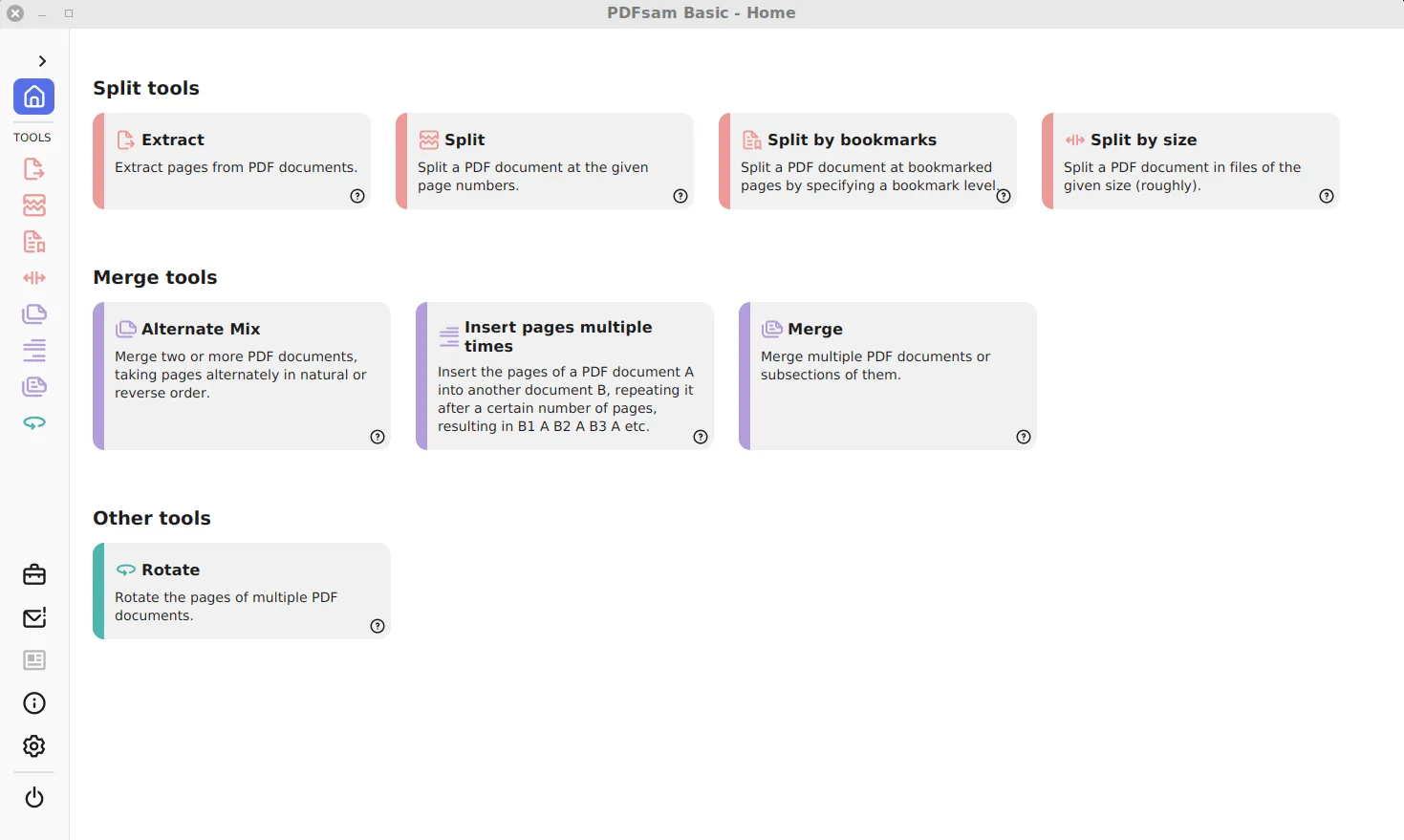
- Open Split by bookmarks. Click Split by bookmarks under Split tools on the Home screen.
- Add the PDF. Drag in the PDF, or click to select it. The tool reads the document's outline when it loads.
- Choose the level. Pick a level in Split at this bookmark level; 1 is the top of the outline.
- Filter if needed. Optionally type a pattern in Matching regular expression, for example .*Chapter.*.
- Name and run. Under File names settings add [BOOKMARK_NAME] to the prefix, choose an output folder and click Run.
When does splitting by bookmarks beat splitting by pages?
Bookmarks follow the document’s own structure. A manual, a thesis or an annual report exported from a word processor usually has one bookmark per chapter, and chapters rarely have equal lengths. Cutting by page numbers would mean looking up every chapter start by hand; Split by bookmarks reads them for you and cuts at each one.
| Document | Bookmarks present? | Best tool |
|---|---|---|
| Exported report or e-book | Usually | Split by bookmarks |
| Scanned paper stack | No | Split after page numbers or every n pages |
| Batch of equal-length forms | Rarely | Split every n pages |
| Large file that must fit an email limit | Irrelevant | Split by size |
| A few pages only | Irrelevant | Extract |
To see whether a file has an outline, open it in any PDF reader and look for a bookmarks or outline panel. If it is empty, this tool has nothing to cut at.
What does the bookmark level mean?
Outlines are nested. Level 1 holds the top entries, often parts or chapters; level 2 holds the sections inside them, and so on. Split at this bookmark level sets the depth at which PDFsam Basic cuts. Choosing level 2 in a book gives one file per section rather than per chapter, so the number of outputs grows quickly as the level goes down.
Each output starts at the page of one matching bookmark and ends where the next matching bookmark begins. Check what happens to a cover and contents that come before the first bookmark by opening the first output.
How does the regular expression filter work?
The optional Matching regular expression field narrows which bookmarks count. The tool’s example, in its source folder, is .*Chapter.*, which matches any bookmark whose text contains the word Chapter and ignores entries such as Preface, Index or Appendix. A bookmark that does not match is not a split point, so its pages stay attached to the previous file.
Match the capitalisation used in the outline to be safe: .*Appendix [A-C].* would cut only at appendices A to C. Leave the field empty to split at every bookmark of the chosen level.
How do you name files after the chapters?
Open File names settings and right-click the prefix field. Split by bookmarks offers more placeholders than the other tools:
[BOOKMARK_NAME]inserts the bookmark text, so a file might be calledPDFsam_Installation.pdf.[BOOKMARK_NAME_STRICT]is the stricter variant of the same placeholder, worth trying when titles contain unusual characters.[CURRENTPAGE]adds the page number where the piece starts.[FILENUMBER]adds a running number that keeps the files sorted in reading order.
A useful pattern is [FILENUMBER]_[BOOKMARK_NAME], which sorts correctly and still says what each file holds. The PDFsam_ default prefix can be removed here or on the settings page.
What should you check after the split?
Open the first and last output and one from the middle. Confirm that each starts on the right heading page and that no chapter ran into the next. Bookmarks that point to the middle of a page cut at that page, so a chapter that starts halfway down a page shares it with the end of the previous one.
The source PDF is never changed. If PDFsam Basic is not on your computer yet, install it from the Windows download page.
Frequently asked questions
Why is the bookmark level list empty?
The PDF has no outline. Scans and many exported files carry no bookmarks, so use Split with page numbers or every n pages instead.
Can I split only at some chapters?
Yes. Enter a regular expression in Matching regular expression, such as .*Chapter.*, and only bookmarks whose text matches become split points.
What is the difference between BOOKMARK_NAME and BOOKMARK_NAME_STRICT?
Both put the bookmark text into the file name. The strict variant is a stricter form of the same placeholder; try both on a copy and keep the one whose names suit your folder when titles contain punctuation.