Split pdf
Split pdf means cutting one PDF into separate files on the machine you control. Install Stirling PDF from the command on the home page, open it, pick Split, choose pages or ranges, and save the parts. This site does not host your files. Official installers stay on GitHub Releases.
winget
winget install StirlingTools.StirlingPDF Copy The job is parts out of one file. Pull the signed last page. Pull pages 3 through 7 for a reviewer who should not see the rest. Break a 40 page scan into chapter files. Split pdf is that cut. Merge pdf is the work if you are going the other way, several files into one. Compress pdf is the work if the file is already the right pages and you only want it smaller.
Why split pdf on this machine
A website split takes the whole PDF, cuts it on their side, then lets you download the pieces. That is fine for a public white paper. It is a bad fit for a personnel file, a bank statement set, or a medical packet where most pages should never leave the room. Split pdf on this machine means Stirling PDF runs on Windows as a desktop app, or in Docker and you open http://localhost:8080. The source file and the parts stay on the PC you already use.
We point at Stirling PDF. We did not build the Split tool. Official installers and release assets live on GitHub Releases. This site does not host the installer, the Docker image, or your PDFs. Skip Softonic, CNET, and unofficial sites that wrap the name.
iLovePDF can sit number 1 for people who want a tab. That is a website toolkit. Their web split sends the file through their service. Stirling PDF vs iLovePDF is the comparison if you want that difference in one place. This page stays on split pdf.
Install so split pdf actually runs
Paste this into Windows Terminal or Command Prompt:
winget install StirlingTools.StirlingPDF Copy If winget is missing, install App Installer from Microsoft, then paste the command again. Official Microsoft links only. The click-to-run path is GitHub Releases: open the latest release and pick the installer for your machine. Windows steps sit on PDF editor download. Winget steps sit on How to install winget.
Docker is the other install path. Copy the compose file on PDF editor Docker, run it, then open http://localhost:8080. Login is on by default on that compose. The Split tool in that tab is the same job as the desktop app. Use one install. Do not cut the file in two copies of the app and then hunt both Downloads folders for page 4.
How to split pdf on the desktop
- Install Stirling PDF with the command on this page, or the installer from GitHub Releases.
- Open the app on this Windows machine. Desktop does not need the Docker login.
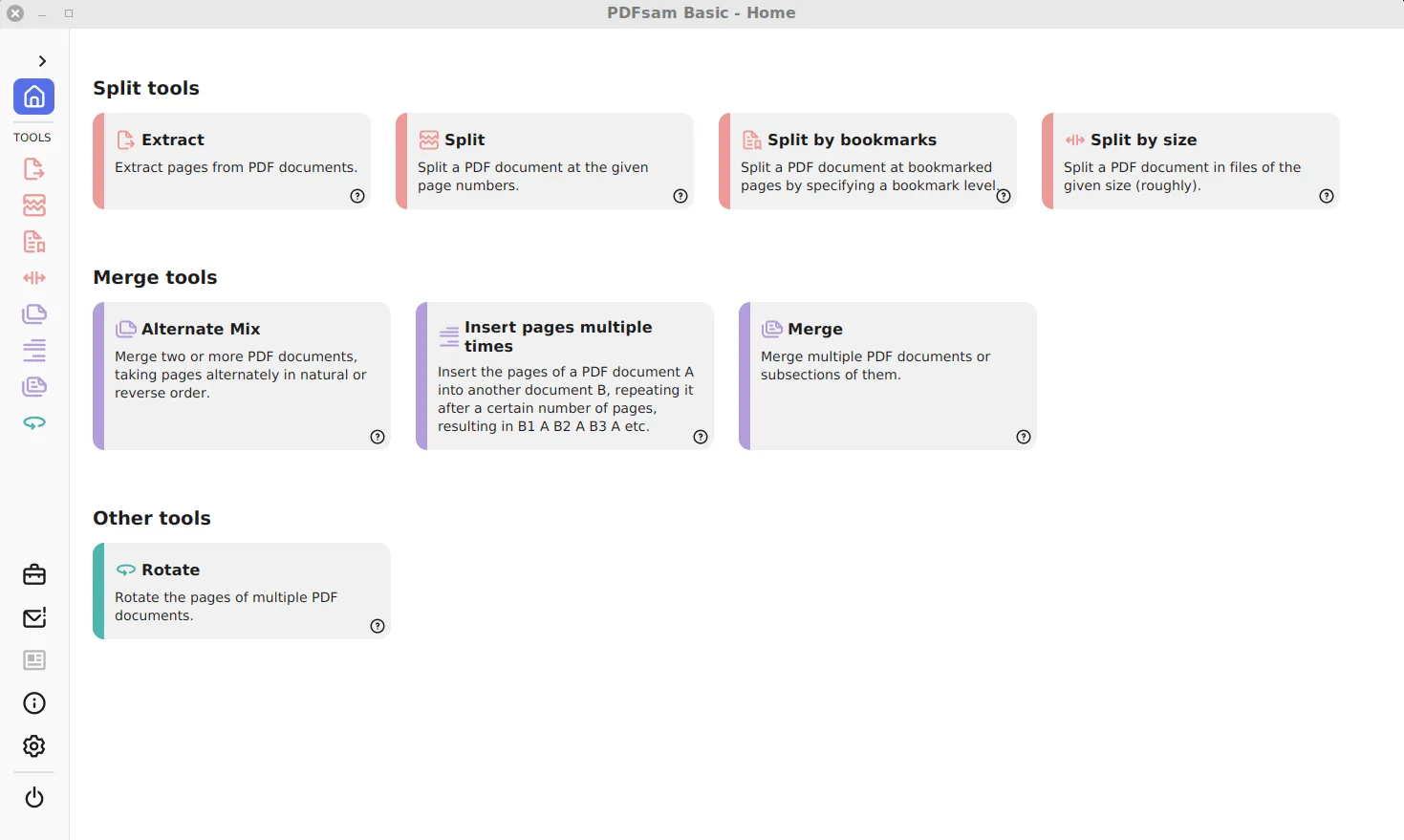
- Open the Split tool. Stirling PDF is a toolbox with 55+ tools, including merge, split, compress, sign, and convert. Split is the tool that cuts one file into parts. Do not start in Merge or Compress for this job.
- Add the one PDF. Choose pages or ranges. A single page is a valid split. A range like 1-3, then 4-10, is also a valid split. The list you set is the parts you get.
- Run Split. Save the parts into a folder you control. Open each part once and check that the right pages landed in the right file before you send anything.
If Split refuses a file, that file may be damaged, password locked, or not actually a PDF. Unlock or repair is a different tool in the same app. This page does not walk those. Get a readable PDF, then split pdf again.
How to split pdf in Docker on localhost:8080
- Run the official compose from the Docker page on this site.
- Open http://localhost:8080 on the same machine. Do not point this at a public URL unless you meant to host it.
- Sign in if the compose still has login on. Then open the Split tool.
- Add the PDF from disk. Choose pages or ranges the same way as desktop. Order still matters. Part one is the first range you asked for.
- Run Split. Save the parts on this machine. The tab is a UI. The files still live on your disk when you take the parts back out of that local app.
localhost:8080 is your instance, not a website we run. If the tab does not open, the container is not up. Fix compose first. Do not upload the same personnel file to a random split site while you debug Docker.
Pages, ranges, and what split pdf does not do
Split pdf cuts. It does not rewrite the document. Fonts stay. Page size stays. A landscape scan stays landscape. The pages you did not ask for stay out of that part. If you needed a smaller file with every page still inside, that is compress pdf. If you later need the parts back as one file, that is merge pdf.
Name the parts on purpose. part-1.pdf, part-2.pdf in Downloads next to last month's part-1.pdf is how people attach the wrong chapter. Use a name that matches the job: offer-letter-only.pdf, appendix-b.pdf, pages-12-18.pdf. Keep the original until you have opened every part you plan to send.
Extracting one page is still split pdf. A cover, a signature page, an invoice pulled from a statement pack. You do not need a second page on this site for "extract page." Choose that page, run Split, save it. The original stays whole until you delete it, which you should not do until the extract is confirmed.
Forms and signatures: split pdf keeps the pages you asked for. It does not promise every interactive field still behaves the way the full original did. Open the part. If a signature field is gone, you still have the page image. Flattened scans split cleanly. Live forms can be picky. Check before you file.
Split pdf does not sort, redact, or guess which pages a reviewer should see. You pick the ranges. If page 9 is confidential, do not include 9 in the range you send. If you included it by mistake, delete that part, split again from the original, and send the new part. Do not try to "edit" the bad part in email. The original is still on disk. That is the point of splitting on this machine.
Count pages in the source before you choose ranges. Printed numbers on the sheets can lie: a cover with no number, a scanned packet that starts at page 12 because it was chapter two of something else. Use the page index in the app, not the number printed in the footer, unless you have checked they match. A range of 3-7 means the third through seventh sheets in the file.
Local vs upload, for this job only
Upload is convenient. You skip install. The site does the cut. The cost is the whole source file sits on someone else's machine for a while, even if you only wanted page 2 back. Account walls and size caps show up when the packet is large. Split pdf as we sit on it is the install path. Your disk, your RAM, your limit. A 200 page scan set that a free website rejects can still split here if the PC can open the file.
We do not invent iLovePDF file-size numbers. Their website has plan limits that change. Stirling PDF is limited by the machine in front of you. If split pdf is slow, the file is huge or the PC is busy. Close other apps. Split in ranges you actually need, not fifty empty experiments. That is still split pdf. You already have the tool.
PDF editor or Bento is a different comparison: an install versus a toolkit that stays in a browser tab. This page does not rank them. If you typed split pdf, install Stirling PDF and open Split.
Sending parts without sending the rest
The usual reason people split is access, not storage. A hiring packet has an offer, IDs, and a background sheet. The reviewer of the offer should not get the IDs. Split the offer pages, name that file clearly, send only that file. Keep the full packet on the PC. If they later need the IDs, split those pages as a second send. Do not mail the whole original "to save a step."
Email size caps still apply to parts. A single photographed page can be heavier than a 20 page text brief. If a part will not attach, compress that part. Split first so you are shrinking only what you mean to send. Compressing the whole packet and then splitting also works. Order depends on which pages are heavy. Look at the file sizes after each save.
When you are done, you will have the original plus the parts. That is expected. Split writes new files. It does not replace the source. Clean up later, after the recipient confirms they have the right pages. Until then, keep everything.
How do I split pdf without a website?
Install Stirling PDF from the command on this page, or from GitHub Releases. Open Split. Choose pages or ranges. Save the parts on this machine. Docker is the same job at http://localhost:8080. This site does not host your files.
What is the winget command for split pdf?
The command is winget install StirlingTools.StirlingPDF. Copy it from the box on this page. That installs the app. Split is a tool inside the app, not a second installer.
Can I split pdf in Docker?
Yes. Run compose from the Docker page, open http://localhost:8080, open Split, choose pages or ranges, save the parts. Login is on by default on that compose. Desktop skips that login.
Does split pdf keep the original file?
Yes, unless you delete it. Split writes new files. The source PDF stays where you left it. Keep it until you have opened the parts.
Can I split pdf to get a single page?
Yes. Choose that page, run Split, save it. One page out is still this job. You do not need a new address on this site for extract.
Did you make this split pdf tool?
No. Stirling PDF is the project we point to. Official files live on GitHub Releases. This site only points at that page. Skip Softonic, CNET, and unofficial wrappers.
Related jobs: merge pdf, compress pdf, Stirling PDF vs iLovePDF, PDF editor or Bento. File host: GitHub Releases. Install button on the home page.