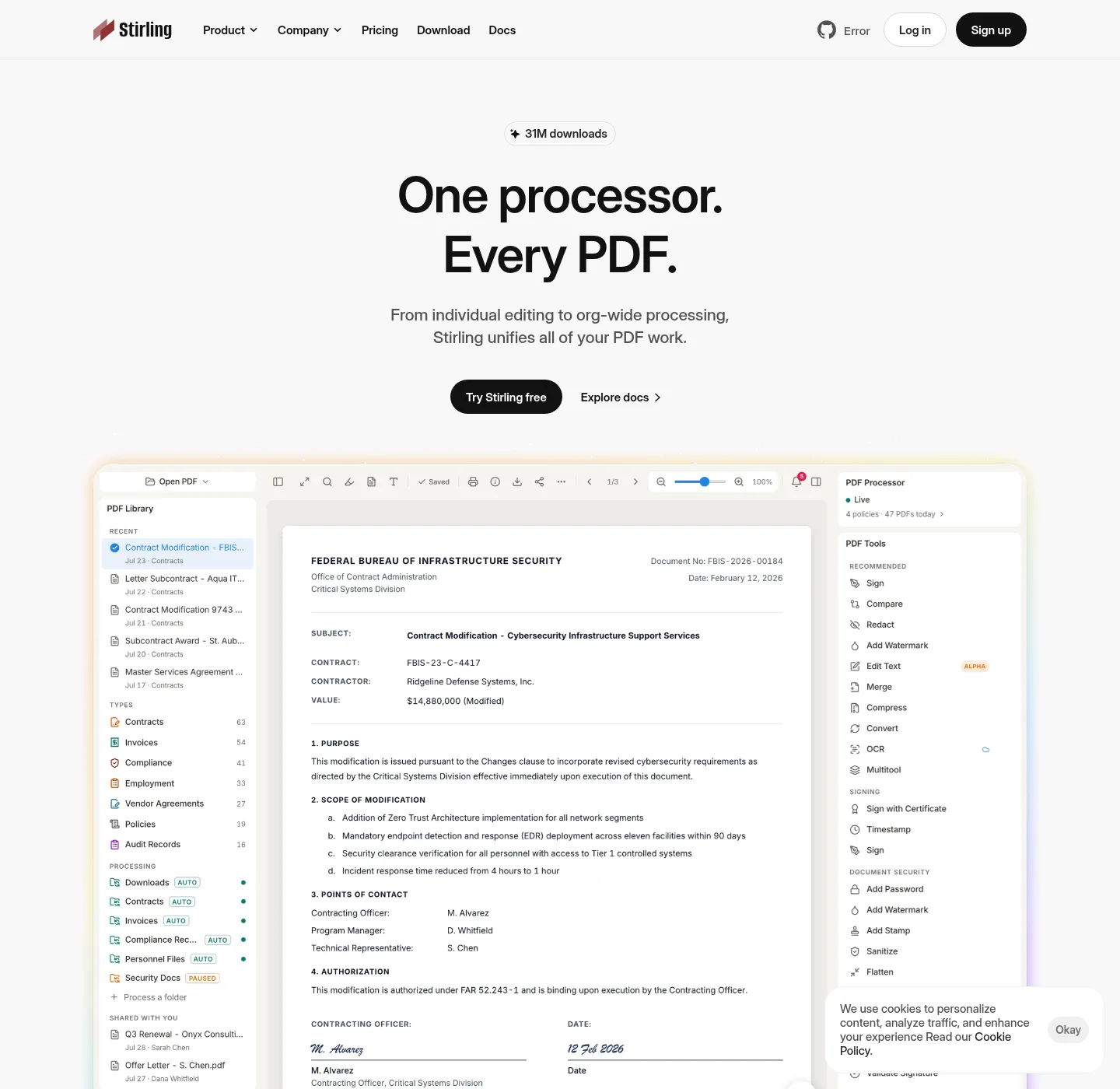
Start with the machine in front of you, not with a brand name you typed into a search box. If the goal is to run a PDF editor on this computer today, use an install path. If the goal is to decide between Stirling PDF and another toolkit, use a compare guide. If the goal is to stop uploading files to a website, use a migrate guide. If the goal is one job such as OCR or sign, use a howto. Home keeps the two commands at the open source PDF editor home.
Windows desktop is already covered on Windows PDF editor download. Docker is already covered on PDF editor Docker Compose. Winget setup is a howto on how to install winget, and it is a howto, not a header link. The guides below cover Windows versus Docker, a JAR server, vendor comparisons, migration, and single-job howtos. Official Mac and Linux packages live in Stirling docs, and these notes cover Windows and Docker.
When a guide names a command, that command was checked against official Stirling docs on 2026-09-02, not against a random blog. Release numbers are not typed here, and the current release is injected at build from GitHub. If a filename on GitHub Releases does not match the pattern in open source PDF editor releases, wait and read the official list. If a search result wants you to fetch a helper from Softonic or CNET, stop and use is it safe to download this PDF editor instead.
How to pick a guide
Name the operating system and the next action in one sentence, and install on this Windows PC. See how Stirling PDF differs from Acrobat. Stop sending PDFs through a website. Redact a PDF without uploading it, and if you can say that sentence, open the matching guide below. If you cannot, read the section intros, then pick the shortest match. One official channel is enough. Mixing winget and Docker on a personal laptop is how an output folder goes missing.
A useful second test: should the file leave the PC, and if the answer is no, stay on Windows desktop or Docker on localhost:8080. If the answer is yes, you may still want a web toolkit, and the compare guides will say so without inventing a rank. iLovePDF is upload-to-web at ilovepdf.com. Bento PDF is a browser toolkit at bentopdf.com. Adobe Acrobat is a commercial suite at acrobat.adobe.com. Stirling PDF is the project these notes install.
Install and comparison notes already published
These URLs already exist and stay indexed. They cover the daily commands, compose, merge, and the older comparisons when you already know the job.
- Windows PDF editor with winget, MSI, or Scoop. Desktop has no login.
- PDF editor Docker compose. Official compose, docker-compose up -d, localhost:8080, admin / stirling.
- How to install winget for App Installer, then winget install StirlingTools.StirlingPDF.
- Merge PDFs on a machine you control.
- Compress a PDF. Shrink a file. Compression may need a server backend.
- Split a PDF. Extract pages or ranges locally.
- Stirling PDF vs Bento PDF. Install versus a browser PDF tool at bentopdf.com.
- Stirling PDF vs iLovePDF. Install versus upload-to-web at ilovepdf.com.
The Windows command those pages share:
winget install StirlingTools.StirlingPDFInstall, compare, migrate, and howto
Choosers, comparisons, migrations, and single-job howtos. Each title is its own URL.
- Windows or Docker for this PDF editor.
- Run this PDF editor as a JAR server. Java JDK 25 and the three official JAR names.
- Stirling PDF vs Adobe Acrobat: which PDF editor.
- Stirling PDF vs PDF24: which PDF editor. Origin pdf24.org.
- Stirling PDF vs Sejda: which PDF editor. Origin sejda.com.
- Move web PDF tools onto a PDF editor you run.
- Move an Adobe Acrobat workflow into a PDF editor.
- OCR a PDF in a local PDF editor. Needs a server backend per Modes.
- Sign a PDF in a local PDF editor.
- Redact a PDF in a local PDF editor.
- Rotate a PDF in a local PDF editor.
- Is it safe to download this PDF editor.
Install guides
Install guides assume you want Stirling PDF on a machine you control, and desktop apps from official packages do not require a Stirling account. Local tools such as merge, split, rotate, and sign work offline. OCR and some conversions may need a server you run or a Stirling Cloud connection. Official mode notes live on docs.stirlingpdf.com, and if the computer is Windows, skip the JAR guide until you actually want Java, and use winget or the MSI. If you want a server in a container, use Docker, and image docker.stirlingpdf.com/stirlingtools/stirling-pdf:latest, port 8080, login on by default. A single setup map for mixed machines is set up this PDF editor on this computer.
| If you have | Open | Official path |
|---|---|---|
| Windows 10 or 11 | Windows or winget howto | winget install StirlingTools.StirlingPDF, or MSI from GitHub Releases |
| A server or a lab box | Docker | Image on docker.stirlingpdf.com, then docker-compose up -d, port 8080 |
| Need a longer chooser | Windows or Docker | Same two commands, with the tradeoffs written out |
| Any mixed set of PCs | For this computer | Per-OS table, then one official channel |
Compare, migrate, and howto
Compare guides describe shape: where files are processed, whether you install anything, and when the other product still wins. They are not scorecards and they do not invent prices. Stirling PDF is not a twin of Adobe Acrobat, PDF24, Sejda, Bento PDF, or iLovePDF. Use the Acrobat compare when the other shape is a commercial desktop suite. Use the Bento and iLovePDF notes when the other shape is a browser toolkit or an upload-to-web toolkit.
Migrate guides are for people who already have a workflow somewhere else, and the work product is almost always a PDF file. You do not need a special export format to open that file in Stirling PDF. Adobe migration has no invented import file. Redo merge, split, and sign locally. The shorter cluster URL for Acrobat is move Adobe Acrobat work into a PDF editor. Official Adobe stays at acrobat.adobe.com.
Howto guides cover one job on a copy of Stirling PDF you run. They are not a full tool catalogue. For the live tool list, use official docs, and desktop local tools work without a login. If a job needs OCR or a conversion that official Modes docs route to a server, the howto will say so and point at Docker or a JAR you host. Merge, compress, and split already have their own pages. Repo facts sit on open source PDF editor on GitHub.
Where to report a bug
Bugs in Stirling PDF go to GitHub Issues on Stirling-Tools/Stirling-PDF, and corrections to these notes go through contact and follow editorial policy. Softonic, CNET, and unnamed mirrors are the wrong place to fetch Stirling PDF.