Pick one official channel for the machine in front of you and stay with it, because mixing an MSI copy on Windows with a Docker download folder is how a later merge hunts two places for the same packet.
Stirling PDF is the project, and desktop apps from official packages do not require a Stirling login. Docker and the login JAR do, and local tools such as merge, split, rotate, and sign work offline on desktop. OCR and some conversions may need a server you run and Official mode notes: docs.stirlingpdf.com; Filename patterns: open source PDF editor releases. Channel list: is it safe to download this PDF editor.
Per operating system
| This computer | Notes in these notes | Official install |
|---|---|---|
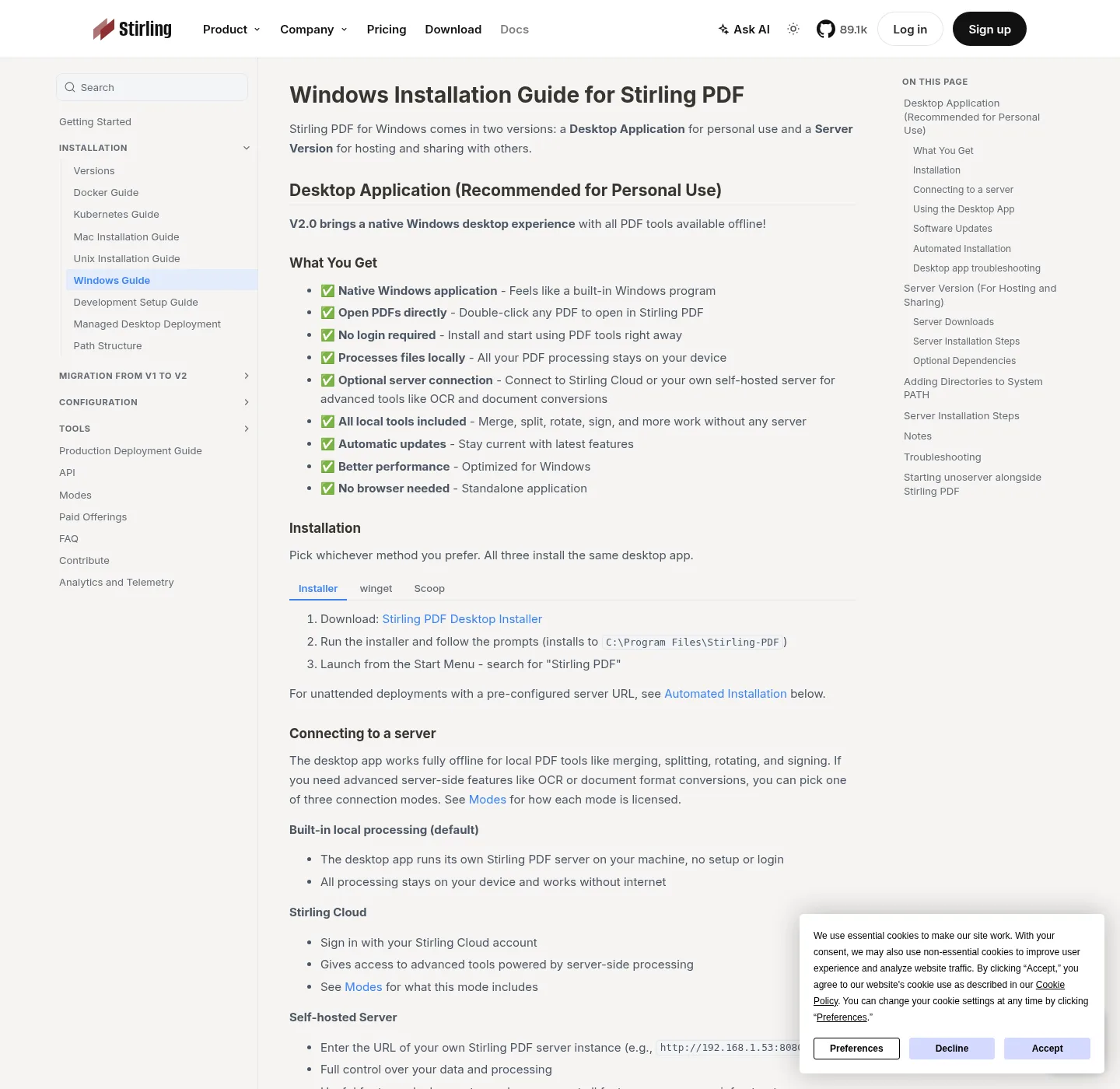
| Windows 10 or 11 | Windows download | winget install StirlingTools.StirlingPDF, or Stirling-PDF-windows-x86_64.msi from GitHub. Installs to C:\Program Files\Stirling-PDF. |
| Need winget first | How to install winget | Register Microsoft App Installer, then the same winget id. |
| A server or lab box | Docker Compose | Image docker.stirlingpdf.com/stirlingtools/stirling-pdf:latest, port 8080, login on by default. |
Scoop on Windows is documented by the project: add bucket https://github.com/Stirling-Tools/homebrew-stirling-pdf then scoop install stirling-pdf/stirling-pdf. Use Scoop or winget or the MSI, not all three, and official Mac and Linux desktop packages are in Stirling install docs. These notes cover Windows and Docker.
winget install StirlingTools.StirlingPDFHow to set up this PDF editor on this computer
- Pick the row that matches this computer. One OS, one channel. Do not mix MSI and Docker on a personal laptop unless you meant to run a server.
- Install from that official channel. Winget, GitHub Releases, files.stirlingpdf.com, or docker.stirlingpdf.com. Skip Softonic and CNET.
- Open a PDF you already have. Desktop: launch Stirling PDF and drop the file in. Docker: open http://localhost:8080, sign in, then upload on that instance.
- Run one local job. Merge, split, rotate, or sign are the jobs official docs treat as local on desktop. Confirm the result saved on disk.
- Set updates, then leave uninstall for later. Use the project's update path for that package. Uninstall only if this computer should not keep the app.
First run
Desktop: no login required, and if Windows starts a process and no window appears, official docs say install Microsoft Edge WebView2 Runtime and launch again. If you are on a Mac or Linux desktop, use official Stirling install docs for that OS. These notes stay on Windows and Docker.
Docker: login is on, and default admin admin / stirling; Change it immediately, and tags include latest, latest-fat, and latest-ultra-lite. Official compose: Docker Install, and then:
docker-compose up -dA JAR is a different first run: Java JDK 25, java -jar, then port 8080. Stirling-PDF-with-login.jar uses the same default admin pair. Stirling-PDF.jar has no auth. Stirling-PDF-server.jar is API only. Do not point the desktop app at a public website and call that local. Connection modes (bundled backend, Stirling Cloud, or your server) are explained in official Modes docs. After the app is running, merge PDF is a good first local job. Signing and redaction live under PDF editor guides.
Updates and uninstall
Windows desktop: official docs say the app can check for updates in Settings, Software Updates, with modes prompt, auto, or disabled. Winget users can also winget upgrade StirlingTools.StirlingPDF; Scoop: scoop update stirling-pdf. Docker: pull the tag you chose and recreate the container from the official compose. JARs: take the same JAR name from the current GitHub release, and notes never type a version. Match the pattern, not a blog's number.
Windows MSI: Settings, Apps, Stirling PDF, Uninstall, or winget uninstall StirlingTools.StirlingPDF, and that removes the app from C:\Program Files\Stirling-PDF. It does not delete PDFs you saved elsewhere and Docker: stop and remove the container and decide whether the configs volume should stay. Uninstall is the wrong tool if you only wanted to stop a Docker login default. Change the password instead. Uninstall is also the wrong tool if a PDF looks wrong: that file is not inside the program folder.
A borrowed laptop you return today is a poor place for a full install. A phone is not the desktop app, and a locked-down lab image that blocks unknown MSI files will block GitHub assets too. Then stop rather than fetch a wrapper. Shared family PCs can run desktop Stirling PDF because local tools stay local, but Docker with default admin on a LAN is a different risk. If the real job is leaving Adobe, set the app up first, then read move Adobe Acrobat work into a PDF editor.
How do I install this PDF editor on this computer?
Match the table and Windows uses winget id StirlingTools.StirlingPDF or the MSI; Servers use Docker on port 8080. Take files only from official channels. Official Mac and Linux packages are on Stirling docs.
Does the desktop PDF editor need an account?
No and Official Windows docs say the desktop app does not require login. Docker and Stirling-PDF-with-login.jar do require login, and default admin is admin / stirling until you change it.
Can I run this PDF editor offline?
Desktop local tools (merge, split, rotate, sign) work without a network according to official docs. OCR and some conversions may need a server connection and Docker still needs you to have pulled the image first.
How do I update Stirling PDF?
Use the same channel you installed from: winget upgrade, the in-app Software Updates setting, a new official package, or a new Docker pull. Always match filename patterns on the current GitHub release.
How do I uninstall it?
Windows: Apps settings or winget uninstall StirlingTools.StirlingPDF and Docker: remove the container; Your PDF files on disk stay put unless you delete them yourself.