How do I install the free PDF merger on Windows?
Install the open source PDF merger PDFsam Basic on a Windows PC with one winget command. It takes five steps: copy the command, open the Run box, paste and run, approve the prompt and open Merge.
- Copy the command. Click Copy next to the winget command below.
- Open the Run box. Press Win+R on the keyboard.
- Paste and run. Press Ctrl+V, then Enter. winget downloads the official MSI from GitHub, checks its SHA-256 and installs it.
- Approve the prompt. Click Yes on the User Account Control prompt.
- Open Merge. Start PDFsam Basic from the Start menu and click Merge on its Home screen.
This is the command winget runs for the PDFsam.PDFsam package. It comes from the PDFsam.PDFsam manifest in Microsoft’s winget repository:
winget install -e --id PDFsam.PDFsam --accept-source-agreements --accept-package-agreementsIf Windows says winget is not recognized, follow the winget setup guide, or download pdfsam-basic-6.0.5-windows-x64.msi (93.8 MB) from the official GitHub release.
Which free PDF mergers can you download for a PC?
Five kinds of result come up for this search: PDFsam Basic, two freeware toolboxes (PDF24 Creator and PDFgear), Adobe Acrobat, and small merge apps in the Microsoft Store. Only PDFsam Basic is open source. The licence column below comes from each package’s own winget manifest, which we read on 29 September 2026.
| Feature | PDFsam Basic | PDF24 Creator | PDFgear | Adobe Acrobat | Store merge apps |
|---|---|---|---|---|---|
| Price to merge | Free | Free | Free | Paid Standard or Pro plan | Varies; some free, some paid |
| Licence in winget manifest | AGPL-3.0 | Proprietary | Proprietary | Proprietary (Reader) | Not in winget |
| Source code public | Yes | No | No | No | Usually no |
| Merges offline | Yes | Yes | Yes | Yes | Varies |
| Platforms | Windows, macOS, Linux | Windows | Windows, macOS, mobile | Windows, macOS | Windows |
| Winget ID | PDFsam.PDFsam |
geeksoftwareGmbH.PDF24Creator |
PDFgear.PDFgear |
Adobe.Acrobat.Reader.64-bit (Reader) |
None |
| Also edits text or runs OCR | No | OCR, compression | Text editing, OCR | Yes, in paid plans | Rarely |
Sources: the PDF24 Creator, PDFgear and Acrobat Reader winget manifests, pdf24.org, pdfgear.com and Adobe’s plan page.
How big is each download?
PDFsam Basic is the smallest of the three installers we measured, even though it bundles its own Java runtime. We read each file’s size from its download server on 29 September 2026, using the installer URL listed in the winget manifest.
| Installer | Size | What it contains |
|---|---|---|
| PDFsam Basic MSI | 93.8 MB | Eight page tools and a bundled Java runtime |
| PDF24 Creator MSI | 376 MB | PDF toolbox, OCR and a virtual PDF printer |
| Adobe Acrobat Reader 64-bit installer | 822 MB | Viewer; merging needs a paid plan |
The PDFgear download server did not report a file size, so it is left out rather than guessed.
When is PDFsam Basic the better pick?
Pick PDFsam Basic when the job is about whole pages and you want software you can check. It is open source under the GNU AGPL v3, so a school, office or company with an open source policy can use it without a licence review, and there is no trial, watermark or file limit.
It is also the better pick in these cases:
- Mac or Linux. PDF24 Creator has no desktop build outside Windows; PDFsam Basic has the same tools on all three systems.
- Page precision. Merge takes a page range for each file, such as
1-3,7, and can keep, drop or rebuild bookmarks and add a table of contents page. - Private files. Every tool runs on your own disk. There is no online version to land on by mistake.
- Splitting as well as merging. Split by page numbers, by bookmarks or by file size, and extract, rotate or interleave pages, from the same app.
The PDFsam Basic vs PDF24 comparison and the Adobe Acrobat comparison go into each rival in more depth.
When is another PDF merger better?
Choose something else when the job changes what is on the page. PDFsam Basic never edits text, runs OCR, signs, redacts or shrinks scanned images; its compression setting only packs the file’s internal streams.
- PDF24 Creator suits a Windows PC that also needs OCR, image compression or a PDF printer, and you do not mind closed-source freeware.
- PDFgear suits someone who wants free text editing and signing in the same app on Windows or a Mac.
- Adobe Acrobat Standard or Pro suits an office that already pays for Adobe and needs forms, e-signatures and redaction.
- A Microsoft Store merge app can be enough for a one-off job, but the five Store results we saw for this search came from five different small publishers. Check the publisher, the reviews and whether it adds a watermark before installing.
Is there an open source PDF editor for Windows?
Yes, but none of the free open source options edits PDFs as fully as Acrobat does. PDFsam Basic is the open source choice for page jobs, and LibreOffice Draw is the one for light text changes. Stirling PDF is often listed too, but its desktop build is not fully open source.
| App | Licence | Winget ID | Good for |
|---|---|---|---|
| PDFsam Basic | AGPL-3.0 | PDFsam.PDFsam |
Merging, splitting, extracting, rotating and mixing pages |
| LibreOffice Draw | MPL-2.0 (the LibreOffice suite) | TheDocumentFoundation.LibreOffice |
Opening a simple PDF to change a line of text; it has no merge tool |
| Stirling PDF desktop | MIT outside several folders; the desktop, engine and proprietary folders have their own licences | StirlingTools.StirlingPDF |
Wide toolbox, but not a clearly OSI-licensed build |
The Stirling PDF licence split is set out at the top of its LICENSE file, even though its winget manifest says MIT. LibreOffice’s licence is on the LibreOffice licence page. Most “open source PDF editor” lists mix these apps with freeware, so check the licence yourself before relying on one.
How do I combine PDF files offline on Windows?
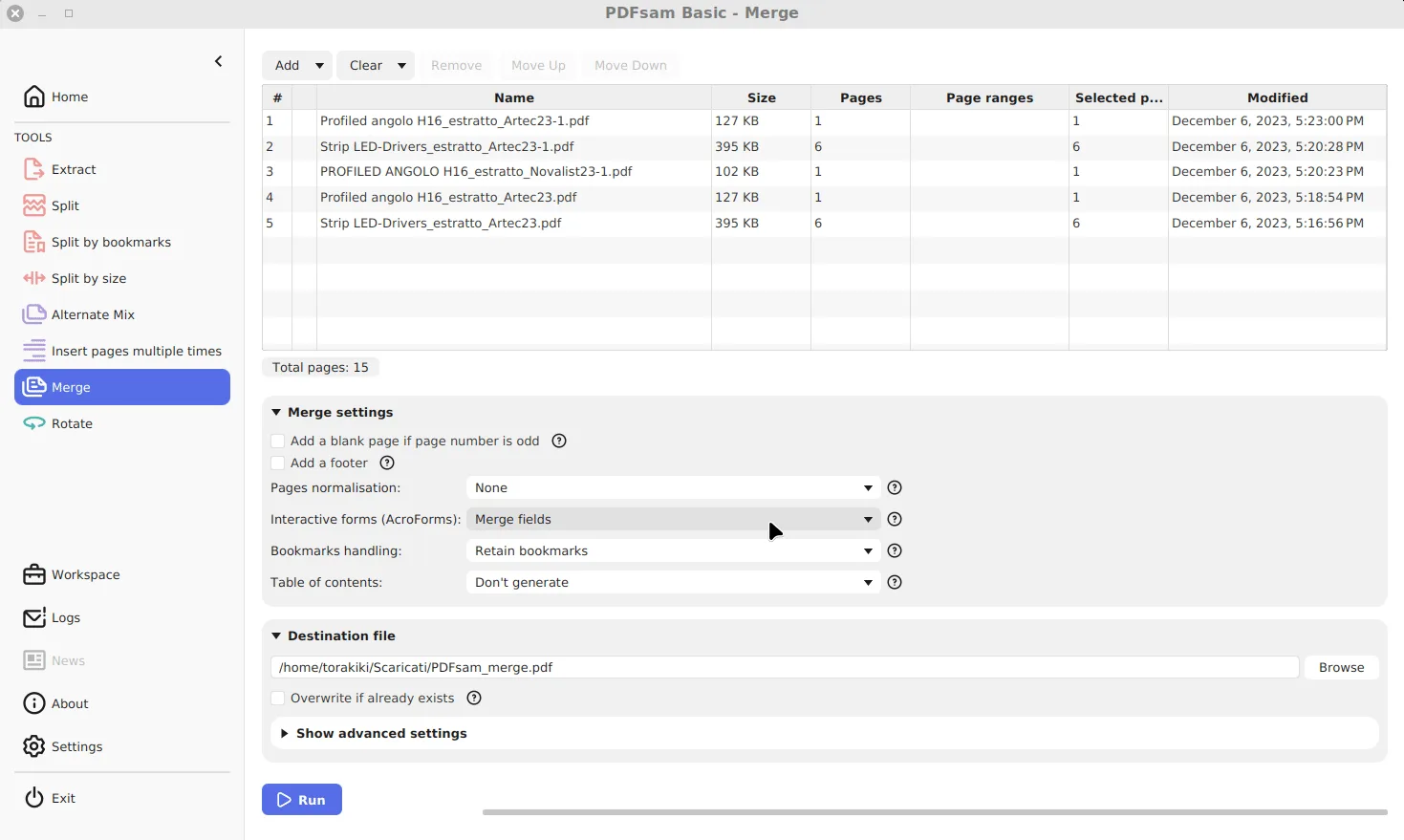
Install PDFsam Basic with the command above, open Merge, drag your PDFs into the list and click Run. Windows itself has no merge command in File Explorer, and the Edge PDF viewer opens one file at a time.
- Open PDFsam Basic and click Merge on the Home screen.
- Drag the PDFs into the file list, or click Add.
- Put them in order with Move Up and Move Down, and double-click a file’s Page ranges cell to merge only part of it.
- Choose what happens to bookmarks and forms, or keep the defaults.
- Set the Destination file, then click Run.
The merged file is written where you chose, the originals stay as they were, and nothing is uploaded. The merge guide explains each option, including the table of contents and blank-page settings.
Frequently asked questions
What is the best free PDF merger for PC?
For merging, splitting and reordering pages, PDFsam Basic is the free pick with no strings: open source under the AGPL, offline, no watermark, no account. If you also need OCR or image compression, PDF24 Creator is a free closed-source alternative for Windows.
Can I merge PDF files on Windows without installing anything?
Not with Windows alone. File Explorer has no merge command and the Edge PDF viewer opens one file at a time. The no-install routes are a website, which uploads your files, or the PDFsam Basic ZIP edition, which runs from a folder without an installer.
Is PDFsam Basic safe to download?
Yes, from GitHub, pdfsam.org, winget or the Microsoft Store. The winget package downloads the MSI from the torakiki/pdfsam GitHub release and checks its SHA-256 before installing it.
Do free PDF mergers add a watermark?
PDFsam Basic, PDF24 Creator and PDFgear do not. Some small single-purpose merge apps do, or limit the number of files until you pay, so read the listing before installing one.