What off the web means
Move web PDF tools onto a PDF editor you run means this: stop uploading private PDFs to a browser toolkit, and run the same kind of job in Stirling PDF on Windows or in Docker. The website is still allowed for a public flyer; the packet with account numbers is not a website job.
Official Stirling files stay on GitHub Releases; shape comparisons: vs iLovePDF, vs Bento, vs PDF24, vs Sejda.
Website tab versus an install
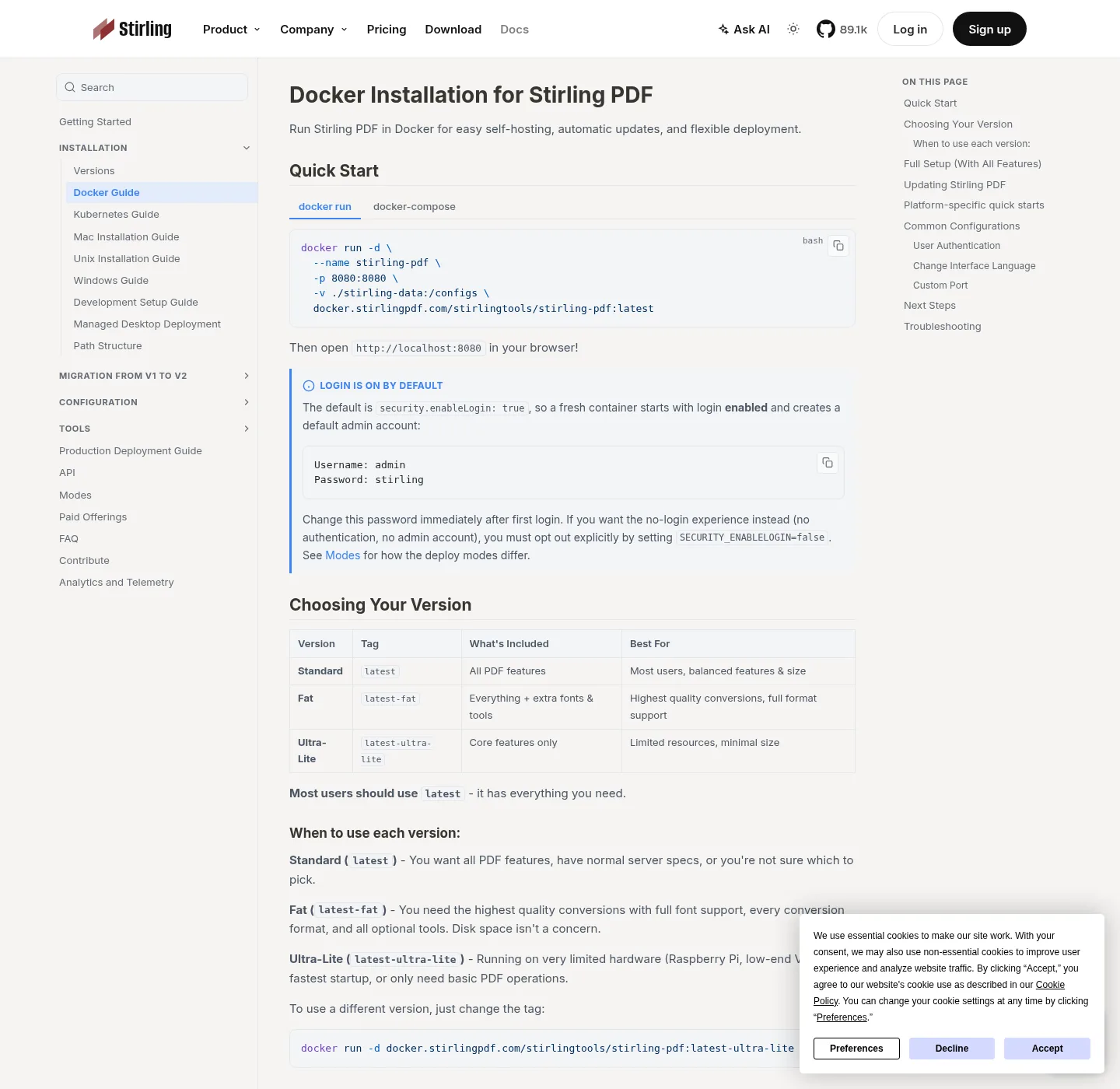
A web PDF tool is a URL; you drop a file, wait, download. The vendor’s privacy page is the contract for where that file went; an install is winget or compose. Desktop local: no login, merge split rotate sign on the device; Docker: http://localhost:8080, login on (admin / stirling, change it). Official Modes docs say OCR and some conversions are not desktop local-only.
You do not import iLovePDF history; there is no project file. You repeat the job on the new install and you keep the original PDF until you have opened the output.
| Job you did on a website | Stirling path | Notes |
|---|---|---|
| Merge two PDFs | Merge pdf | Desktop local or Docker |
| Split pages out | Split pdf | Desktop local or Docker |
| Compress | Compress pdf | Some conversions need a server |
| Rotate a scan | Rotate a PDF | Desktop local or Docker |
| Sign | Sign a PDF | Local on desktop |
| Redact | Redact a PDF | On the install you run |
| OCR a scan | OCR a PDF | Needs Docker, JAR, or Cloud. Not desktop local-only |
| Convert Office | Server or Cloud | Not a silent desktop-local promise |
| Stay on the website | Vendor origin | Fine for files you would publish anyway |
| File host | GitHub / docker.stirlingpdf.com | Skip unofficial wrappers |
Install one PDF editor, not two daily copies
Windows desktop (personal window):
winget install StirlingTools.StirlingPDFIf the command fails, How to install winget; MSI Stirling-PDF-windows-x86_64.msi is on the current GitHub release. Details: PDF editor download.
Docker (server tab):
docker-compose up -dImage docker.stirlingpdf.com/stirlingtools/stirling-pdf:latest, port 8080, compose on PDF editor Docker; change the default password; to skip login:
SECURITY_ENABLELOGIN=falseJAR is the bare-metal option on JAR server; chooser: Windows or Docker.
Steps to move the work
- List the website jobs you actually run (merge, split, compress, sign) and mark which files are too private for a website.
- Install Stirling PDF once: winget for Windows desktop, or official compose for Docker on port 8080.
- Redo the first private job in Merge, Split, or Rotate, and save the result in a folder you control.
- Keep website bookmarks only for files you would already put on a public site.
- If scans must become searchable, add a server and follow OCR a PDF instead of a website OCR tab.
Open the output once; check page order. Then delete the website download if that was only a trial, and empty the recycle bin if the trial had private pages.
What not to do
Do not upload the same private PDF to three websites “to compare quality.” Do not paste the Docker URL onto the public internet unless you meant to host a server. Do not leave admin / stirling on a LAN container; do not treat desktop local OCR as a promise: official docs say it is not. Do not install Stirling from Softonic or CNET; safe path: download safe and is it safe.
Adobe is a different migrate: import a PDF workflow from Adobe and PDF from Adobe; Windows and Docker installs start at home. Guides is the index.
Privacy shape and Stirling Cloud
Desktop local merge, split, rotate, and sign stay on the PC; that is the privacy shape people want when they leave a website. Official Modes docs say OCR and some conversions are not available in desktop local-only mode; those jobs go to a self-hosted server or to Stirling Cloud.
Stirling Cloud is not the same as the Windows window; cloud-routed jobs leave the device and use credits. If you left iLovePDF because the file was private, do not send the same file to Stirling Cloud. Run PDF editor Docker and keep the container on localhost or your LAN; change admin / stirling. Opt out of login only with SECURITY_ENABLELOGIN=false if you accept an open UI.
A public flyer can still use a vendor website. The test is not “which logo looks free.” The test is whether you would paste the PDF into a stranger’s form. Names, payroll, and medical scans fail that test. Save local outputs next to the original with a new name so you can tell a website download from a machine you run.
Self-host stays free up to 5 users; Server is about US$99 per month or about US$999 per year. Enterprise is custom; read Paid Offerings and stirling.com/pricing; related install chooser: Windows or Docker.
Common questions
Why move PDF tools off a website? A website merge uploads the file, runs the job on their side, and lets you download a result. That is a poor fit for names, payroll, or medical scans. A PDF editor you run keeps those jobs on Windows desktop or on Docker at http://localhost:8080. You still read each vendor’s terms if you keep using their site for public flyers.
Does the desktop PDF editor replace every web tool? No. Desktop local covers merge, split, rotate, and sign, per official Modes docs; OCR and some conversions need a self-hosted server or Stirling Cloud. Sites such as iLovePDF, Bento, PDF24, and Sejda still exist for people who want a tab. Install Stirling when you want the work on your machine.
How do I install this PDF editor after leaving a website? On Windows, run winget install StirlingTools.StirlingPDF. If winget is missing, follow How to install winget; for a server tab, use the official compose and open http://localhost:8080. Change the default admin password; the image is docker.stirlingpdf.com/stirlingtools/stirling-pdf:latest.
Can I keep one web tool and use this PDF editor too? Yes. There is no import wizard from iLovePDF or Bento; finish public jobs where you already finish them. Point private jobs at Stirling PDF. Save outputs into folders you name so you can tell a website download from a local save. Do not upload the local result back to the same website as a test.
Is Docker required to leave web PDF tools? No. Windows desktop is enough for local merge, split, rotate, and sign; Docker is the path when you want port 8080, a shared instance, or OCR. Pick one daily install on Windows or Docker so results do not land in two places.
Frequently asked questions
Why move PDF tools off a website?
A website merge uploads the file, runs the job on their side, and lets you download a result. That is a poor fit for names, payroll, or medical scans. A PDF editor you run keeps those jobs on Windows desktop or on Docker at http://localhost:8080. You still read each vendor's terms if you keep using their site for public flyers.
Does the desktop PDF editor replace every web tool?
No. Desktop local covers merge, split, rotate, and sign, per official Modes docs. OCR and some conversions need a self-hosted server or Stirling Cloud. Sites such as iLovePDF, Bento, PDF24, and Sejda still exist for people who want a tab. Install Stirling when you want the work on your machine.
How do I install this PDF editor after leaving a website?
On Windows, run winget install StirlingTools.StirlingPDF. If winget is missing, follow How to install winget. For a server tab, use the official compose and open http://localhost:8080. Change the default admin password. The image is docker.stirlingpdf.com/stirlingtools/stirling-pdf:latest.
Can I keep one web tool and use this PDF editor too?
Yes. There is no import wizard from iLovePDF or Bento. Finish public jobs where you already finish them. Point private jobs at Stirling PDF. Save outputs into folders you name so you can tell a website download from a local save. Do not upload the local result back to the same website as a test.
Is Docker required to leave web PDF tools?
No. Windows desktop is enough for local merge, split, rotate, and sign. Docker is the path when you want port 8080, a shared instance, or OCR. Pick one daily install on Windows or Docker so results do not land in two places.