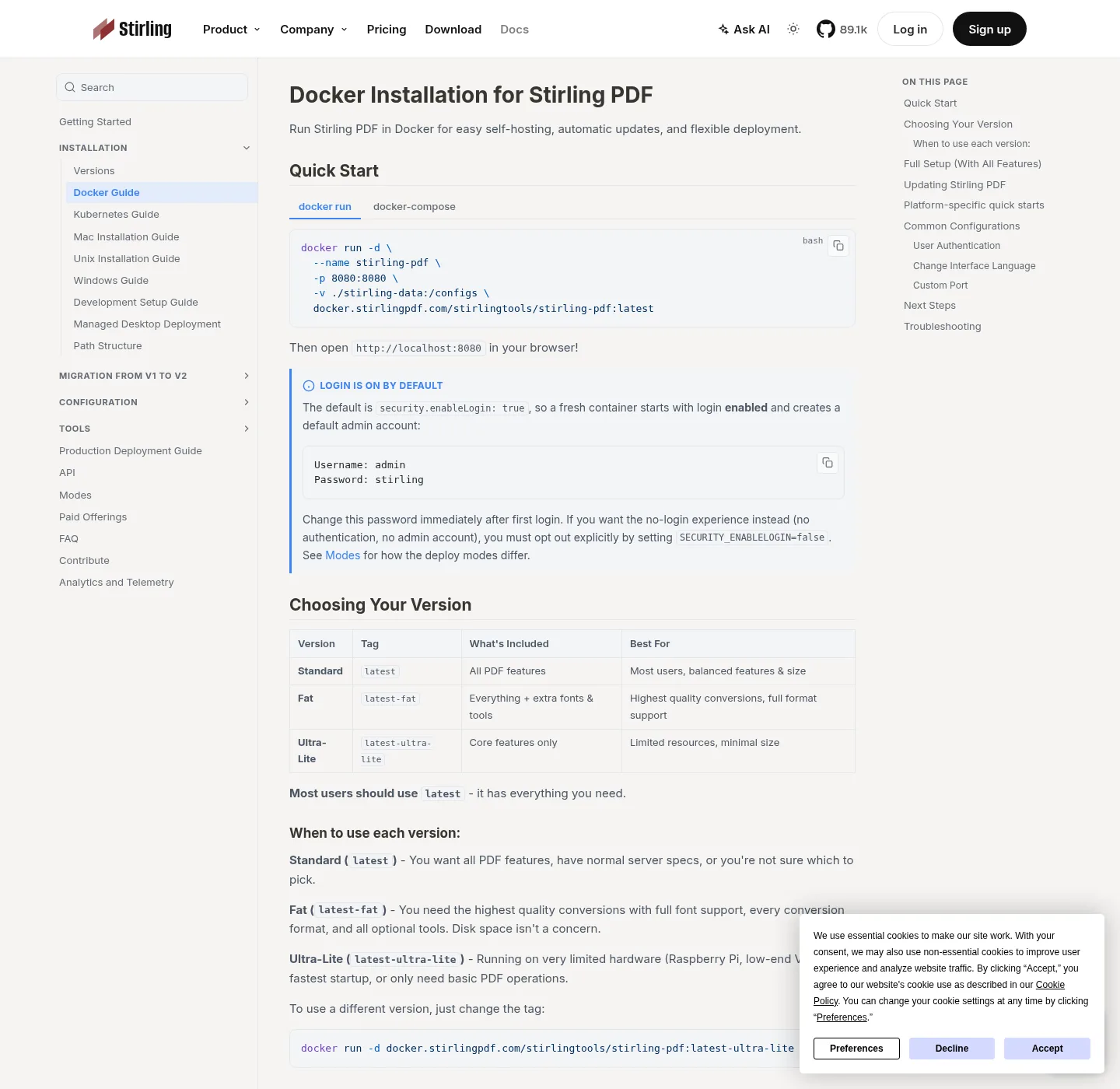
OCR needs a server PDF editor
OCR in Stirling PDF is a server job; official Modes docs say it is not available in desktop local-only mode. Connect the Windows app to a self-hosted server or to Stirling Cloud, or open OCR in Docker / a JAR at http://localhost:8080.
Install paths: Windows or Docker, PDF editor Docker, JAR server. Use OCR when the PDF is a scan, a photo of a page, or an image-only file where you cannot select text. If the file already has a real text layer, you may not need OCR; if you only need a smaller file, that is compress pdf.
Bring the server up
Write a docker-compose.yml from the official Docker guide; a minimal service uses this image and port 8080:
docker.stirlingpdf.com/stirlingtools/stirling-pdf:latestThen:
docker-compose up -dOpen http://localhost:8080; Docker login defaults to admin / stirling; change it; to opt out of login:
SECURITY_ENABLELOGIN=falseTags on the official Docker page are latest, latest-fat, and latest-ultra-lite; most people start with latest. Fat is the heavier conversion image; ultra-lite is the small core image; language packs and extra OCR setup live in official Docker and docs pages at docs.stirlingpdf.com.
An update is docker-compose down, then docker-compose pull, then docker-compose up -d.
Desktop, Docker, JAR, and Cloud
| Path | Can it OCR? | Where bytes go | Login |
|---|---|---|---|
| Windows desktop local-only | No | Device, for merge split rotate sign | None |
| Desktop plus self-hosted server | Yes, on that server | Your Docker or JAR | Server login on by default |
| Desktop plus Stirling Cloud | Yes, on Cloud | Stirling.com Cloud, credits | Cloud account |
| Docker at http://localhost:8080 | Yes, on the container | Machine you run | admin / stirling until you change it |
| JAR with JDK 25 | Yes, when extras such as Tesseract are present | Machine you run | With-login JAR uses the same default |
| Website OCR tab | Vendor’s rules | Their servers | Their account |
Tesseract is an optional extra on the JAR path; official Windows server docs also list Python 3.11.x, LibreOffice, QPDF, Weasyprint, and PDFtoHTML. Docker is usually simpler for a first OCR job because the image already contains what the container needs.
Steps (same as the HowTo)
- Start official Docker compose (or a JAR with Tesseract), because desktop local-only cannot OCR.
- Sign in at http://localhost:8080 if login is on, then change the default admin stirling password.
- In the server UI, open OCR and upload the scanned PDF from a folder you control.
- Process the document, download the searchable PDF, and open it on this machine to confirm you can select text.
- If the file is private, stay on the self-hosted server rather than sending the scan to Stirling Cloud.
If OCR is missing from the menu, you are still in desktop local-only mode, the image is not the documented tag, or the JAR extras are not on PATH. Fix the install, restart, then try a one-page scan.
Stirling Cloud versus a server you run
Official Modes split local desktop, self-host, and Stirling.com Cloud; desktop local cannot OCR. Desktop plus Stirling Cloud sends advanced jobs to Stirling.com Cloud and uses credits on those jobs. Desktop plus a self-hosted server sends them to your Docker or JAR; web self-host is the browser UI on the server you run.
If the scan is private, pick self-host; point the Windows desktop app at http://localhost:8080 or at the LAN URL of your container. Change the default password; do not treat Cloud as “still local.”
Self-host stays free up to 5 users; Server is about US$99 per month or about US$999 per year. Enterprise is custom; read Paid Offerings and stirling.com/pricing.
After a searchable PDF exists, rotate or merge can still run on desktop local; you may redact once there is a text layer to search. You do not need a website OCR tab for a private scan; leaving websites: move PDF tools off the web. Home and guides link the rest of the install.
Limits to expect
OCR turns an image of text into selectable text; it does not rebuild a spreadsheet; handwriting, decorative fonts, and very small type fail often; prefer a clean scan. If the page is sideways, rotate first on desktop local, then OCR on the server.
Skip Softonic, CNET, and unofficial images; files stay on GitHub Releases and docker.stirlingpdf.com. Safe notes: is it safe; most of the public repo is MIT (Copyright 2025 Stirling PDF Inc.) with directory exceptions. Folders such as proprietary, saas, engine, desktop, cloud, and portal use other licenses.
Common questions
Can the desktop PDF editor OCR without a server? No. Official Modes docs say OCR needs a server-side backend; the desktop app in local-only mode will not silently upload the scan. Connect it to a self-hosted Docker or JAR that has OCR, or to Stirling Cloud; merge and rotate still run locally without that connection.
How do I run OCR in Docker for this PDF editor? Write official compose with image docker.stirlingpdf.com/stirlingtools/stirling-pdf:latest, then docker-compose up -d. Open http://localhost:8080, sign in as admin / stirling, and change that password; open OCR in that tab. Follow official Docker docs for language packs.
Does Stirling Cloud OCR stay on my PC? No. Stirling.com Cloud processes on Stirling cloud and uses credits; Self-hosted Docker or a JAR processes on the machine you run. If the scan is private, pick self-host; desktop local merge, split, rotate, and sign still stay on the device.
What Docker tag should I use for OCR? Start with docker.stirlingpdf.com/stirlingtools/stirling-pdf:latest. Official Docker docs also list latest-fat for heavier conversions and latest-ultra-lite for the small core image. Read those docs for which tag matches OCR; do not invent a fourth tag.
Does the JAR PDF editor OCR with Tesseract? Tesseract is an optional extra on the JAR path, with Java JDK 25 required. Official Windows server docs list Tesseract among optional binaries; Docker is usually simpler for a first OCR job. JAR steps sit on run this PDF editor as a JAR server.
Frequently asked questions
Can the desktop PDF editor OCR without a server?
No. Official Modes docs say OCR needs a server-side backend. The desktop app in local-only mode will not silently upload the scan. Connect it to a self-hosted Docker or JAR that has OCR, or to Stirling Cloud. Merge and rotate still run locally without that connection.
How do I run OCR in Docker for this PDF editor?
Write official compose with image docker.stirlingpdf.com/stirlingtools/stirling-pdf:latest, then docker-compose up -d. Open http://localhost:8080, sign in as admin / stirling, and change that password. Open OCR in that tab. Follow official Docker docs for language packs.
Does Stirling Cloud OCR stay on my PC?
No. Stirling.com Cloud processes on Stirling cloud and uses credits. Self-hosted Docker or a JAR processes on the machine you run. If the scan is private, pick self-host. Desktop local merge, split, rotate, and sign still stay on the device.
What Docker tag should I use for OCR?
Start with docker.stirlingpdf.com/stirlingtools/stirling-pdf:latest. Official Docker docs also list latest-fat for heavier conversions and latest-ultra-lite for the small core image. Read those docs for which tag matches OCR. A fourth tag is not documented.
Does the JAR PDF editor OCR with Tesseract?
Tesseract is an optional extra on the JAR path, with Java JDK 25 required. Official Windows server docs list Tesseract among optional binaries. Docker is usually simpler for a first OCR job. JAR steps sit on run this PDF editor as a JAR server.